



Claude's Settings has three different ways to add a skill, and nothing in the UI tells you when to use which. We walked through all three, installed a real security-audit skill from the explainx.ai registry, and had it working in under a minute. Screenshots throughout.
The short answer if you're in a hurry: copy the skill text from a registry page and paste it into "Write skill instructions." That's the fastest path and it needs no terminal, no file download, and no Claude Code install.
TL;DR — which method should you use?
| Your situation | Use this | Why |
|---|---|---|
| Installing an existing skill from a registry | Write skill instructions | Paste and go — under 60 seconds |
| You have a vague idea, not a written skill | Create with Claude | Claude interviews you and drafts it |
| You already have a skill file on disk | Upload a skill | Direct file import |
| You're already in a coding agent | Paste the install command | Tell the agent to run it — fastest path of all |
| You want it in Claude Code, not claude.ai | None of the above | Claude Code reads from the filesystem — see below |
Step 1: Find the Skills page
Open Settings, then look under the Customize heading in the left sidebar — not under "Settings" — and click Skills. Direct link: claude.ai/settings/customize-skills.
The Add dropdown sits in the top-right corner. Click it and you get the three options:
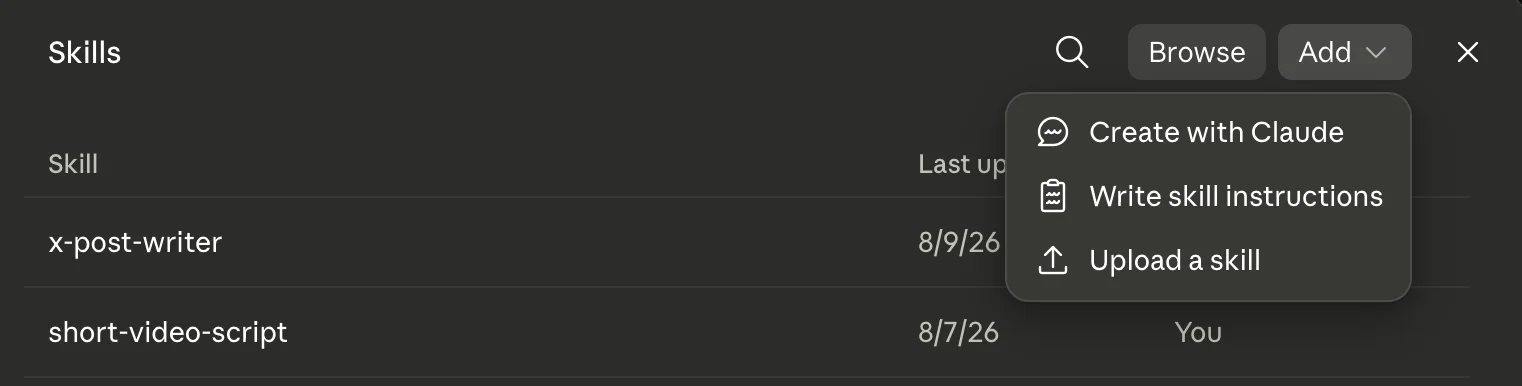
That's the whole decision. Here's what each one actually does.
Method 1: Write skill instructions (fastest for existing skills)
This opens a three-field form:
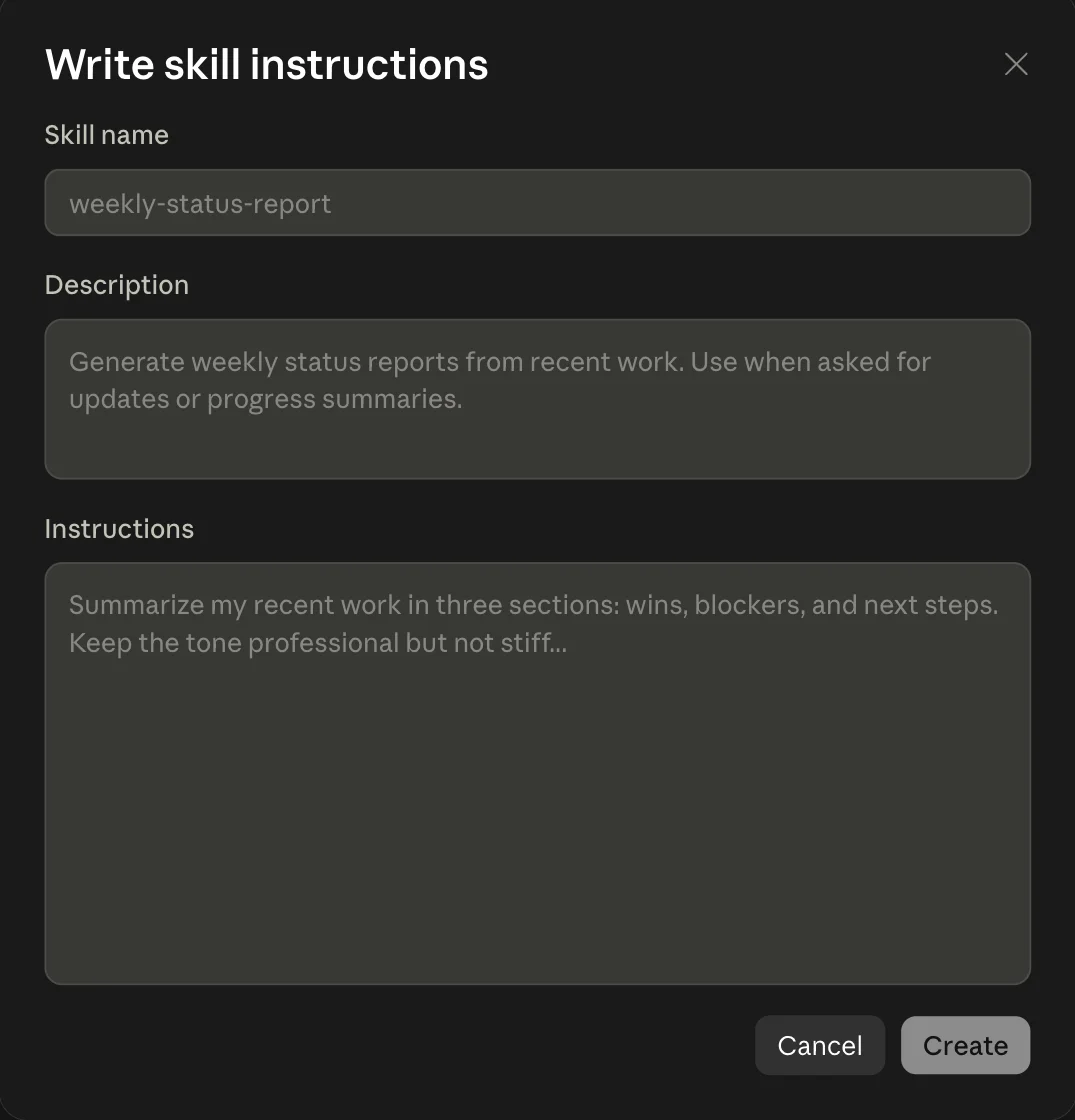
Three fields, and they are not equally important:
| Field | What it does | Gets it wrong how? |
|---|---|---|
| Skill name | Identifier, kebab-case | Low stakes |
| Description | How Claude decides to use the skill | This is the one that matters |
| Instructions | The actual behavior | Vague instructions = vague output |
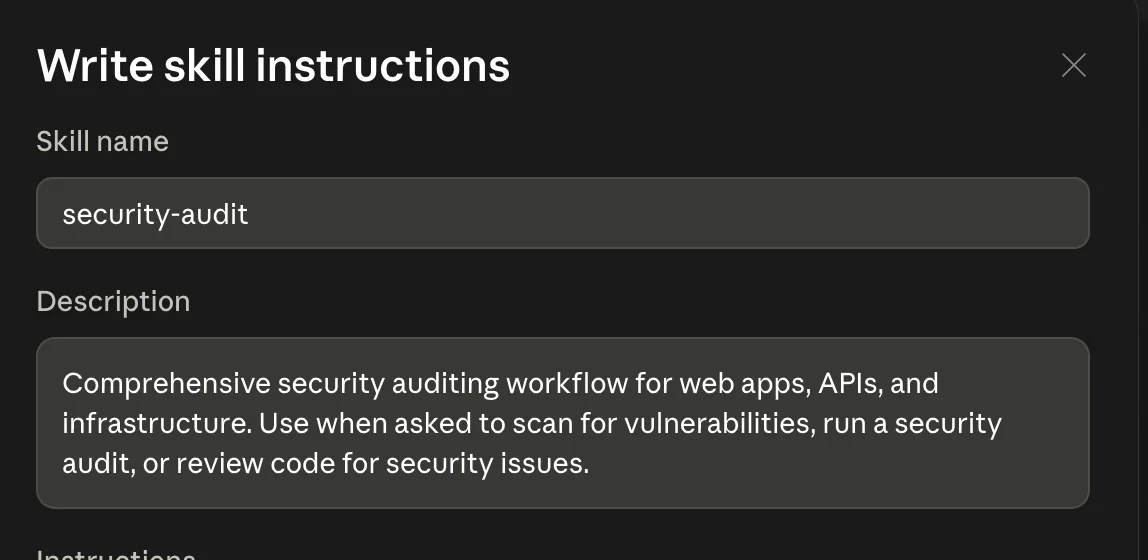
The description is the highest-leverage field in the entire form. Claude reads skill descriptions to decide which skill applies to a given request. A description that only says what the skill is ("Security auditing workflow") gives Claude nothing to match against. One that names the triggering situations does:
Comprehensive security auditing workflow for web apps, APIs, and infrastructure. Use when asked to scan for vulnerabilities, run a security audit, or review code for security issues.
That "Use when..." clause is what makes the skill fire on "can you scan this for vulnerabilities?" — the exact phrasing you'd naturally type.
Getting the skill text
We used the security-audit skill from the explainx.ai registry — one of 121 security and vulnerability skills currently indexed, out of roughly 11,960 total.
On any skill page, the EXPORT dropdown gives two copy options:
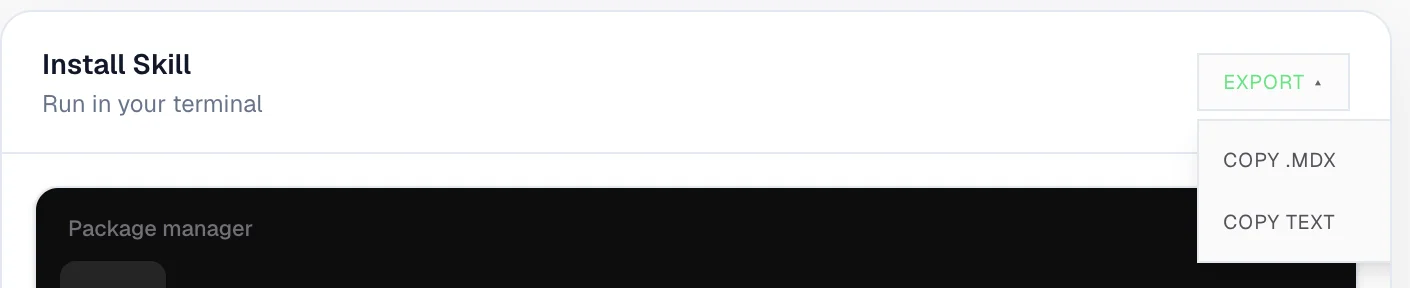
| Option | Use it for |
|---|---|
| COPY TEXT | Pasting into Claude's Instructions field — plain, no markdown wrapper |
| COPY .MDX | Keeping formatting for a repo or docs site |
npx skills add <url> | Terminal install (this is the Claude Code path — see below) |
Note there's no download button. The web flow is copy-based, and the terminal command is the file-based path. That distinction matters for choosing between methods 1 and 3.
One nice touch: the exported text includes a source-attribution block with the canonical URL, so months later you can still trace where a skill came from.
Paste and create
Paste into Instructions, fill in the name and description, hit Create:
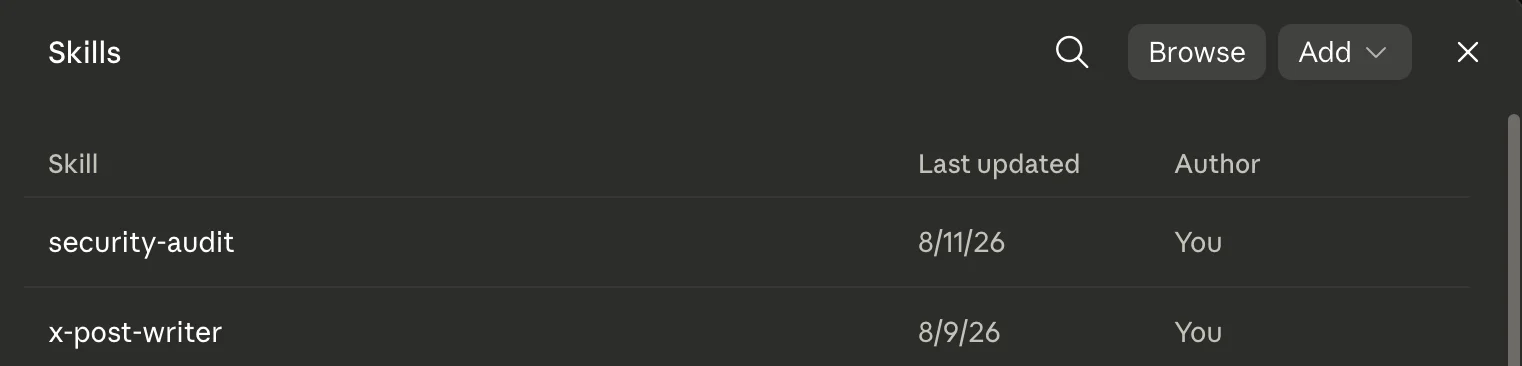
It appears at the top of your skills list immediately:
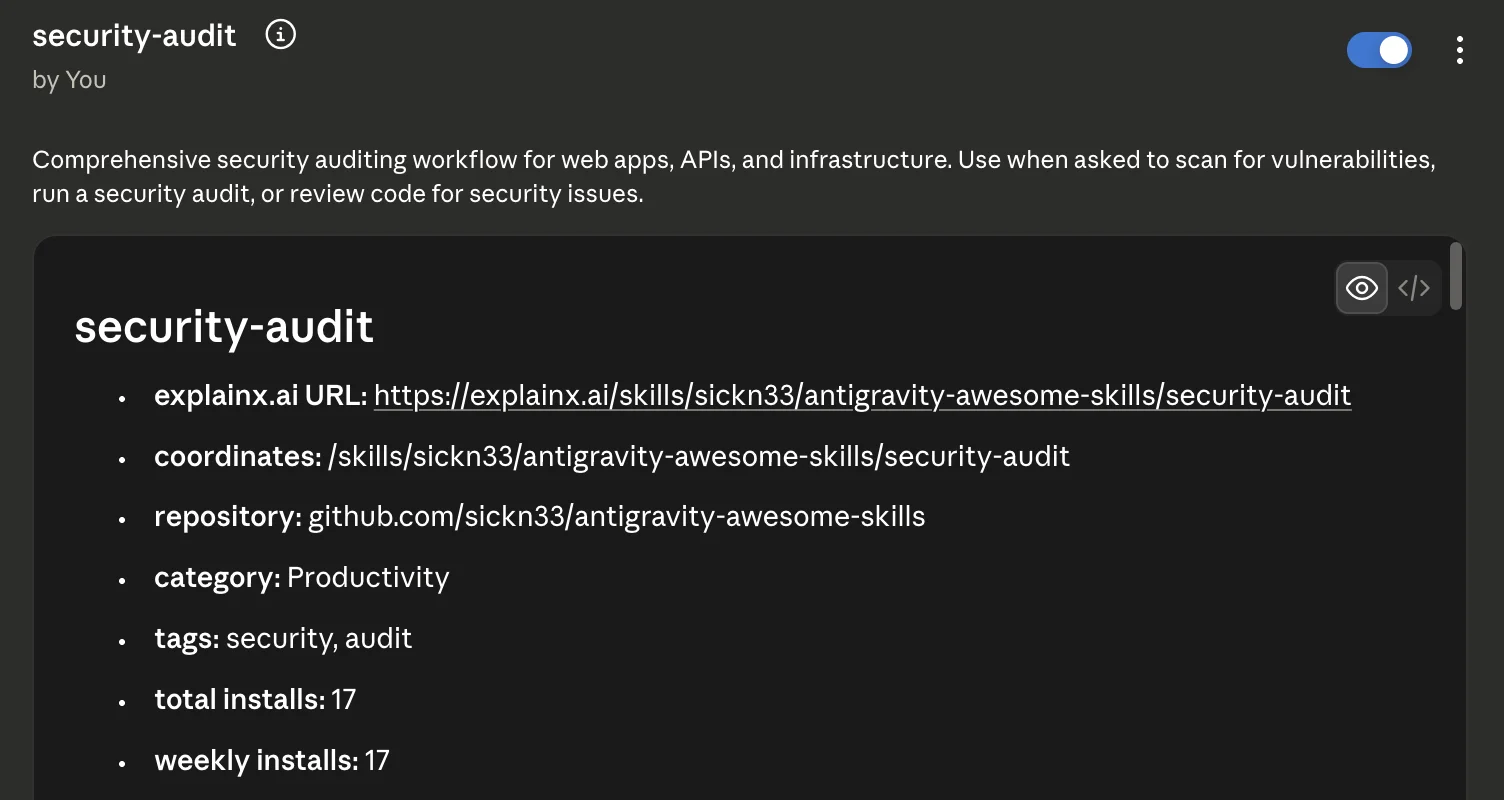
Click it to see the rendered skill with its toggle, source URL, and install command:
Done. Elapsed time: well under a minute.
Method 2: Create with Claude (when you don't have a skill yet)
This one surprised us. It doesn't open a form — it closes Settings and starts a new chat, pre-filled with this prompt:

"Let's create a skill together using your skill-creator skill. First ask me what the skill should do."
So "Create with Claude" is a shortcut that invokes Anthropic's built-in skill-creator skill — which sits in your skills list alongside your own, authored by Anthropic. Claude interviews you about what the skill should do, then writes it.
Two useful consequences:
- You can trigger it manually. Type that same sentence in any chat and you get the identical flow. The menu item is a convenience, not a special mode.
- It's for authoring, not installing. If you already have skill text, this is the slow path — you'd be describing to Claude something you could have pasted.
Use it when you have a fuzzy idea ("I want something that formats my standup notes") and want help turning it into a real skill. For a step-by-step on writing one properly, see our guide to building your first agent skill.
Method 3: Upload a skill (when you have a file)
This opens your operating system's file picker to import an existing skill file — the right choice when you've already got a skill on disk, exported from another machine, or pulled from a repo.
A practical caveat: since registry pages export by copy rather than download, going the upload route for a registry skill means an extra step — save the text to a SKILL.md file yourself first, or clone the source repo. If the skill is already in your clipboard, Method 1 is strictly faster.
Upload earns its place when the skill has supporting files — reference documents, scripts, templates — that a single paste into a text field can't carry.
The thing that trips people up: claude.ai vs Claude Code
Skills added through claude.ai Settings apply to claude.ai conversations. Claude Code doesn't read them.
Claude Code loads skills from the filesystem:
| Location | Scope |
|---|---|
~/.claude/skills/ | Personal — available in every project |
.claude/skills/ | Project — committed to the repo, shared with your team |
That's what the npx skills add <url> command on each registry page is for — it writes the skill to disk where Claude Code will find it:
npx skills add https://github.com/sickn33/antigravity-awesome-skills --skill security-audit
The easiest version: just hand the command to your agent
You don't have to open a terminal yourself. Copy the install command from the skill page and paste it straight into your coding agent — Claude Code, Cursor, Codex, whatever you're running — and tell it to run it. The agent executes the command, the skill lands on disk, and you're done.
Run this for me: npx skills add https://github.com/sickn33/antigravity-awesome-skills --skill security-audit
That's genuinely the whole thing. No file picker, no copy-paste into a form, no deciding between the three methods above. For anyone already working inside a coding agent, this is the fastest path of all — the agent handles the install the same way it handles any other shell command.
Two small notes: your agent will ask permission before running it (approve it once you've read the command), and you may need to start a new session for a freshly installed skill to be picked up.
The project-level path is the underrated one: commit .claude/skills/ and every teammate who clones the repo gets the same skills automatically. That's how a skill stops being a personal shortcut and becomes team infrastructure.
Review skills before you add them
Worth saying plainly, especially given we used a security skill as the example: a skill is a set of instructions that shapes what Claude does on your behalf. Registry skills are contributed by third parties.
Before pasting anything:
- Read the full text. Not the summary — the actual instructions.
- Watch for skills that direct Claude to run commands, fetch URLs, or send data somewhere. Those aren't automatically bad, but they deserve real scrutiny.
- Check the source repository. Every explainx.ai skill page links to its GitHub origin and shows install counts.
- Prefer skills you can read end to end. If it's too long to review, that's a reason for caution, not a reason to skip reviewing.
The copy-paste flow makes this easy in one specific way: the text passes through your clipboard and into a field you can read before clicking Create. Use that pause.
What people ask
"Do I need a paid plan?" — Skills are available on Claude's paid plans. The Skills entry appears under Customize in Settings when your account has access.
"Can I edit a skill after adding it?" — Yes. Click it in the list and edit the name, description, or instructions. The detail view also has a toggle to disable a skill without deleting it — useful when a skill is firing on requests it shouldn't.
"Why isn't my skill triggering?" — Almost always the description. If it doesn't name the situations that should invoke it, Claude has nothing to match against. Rewrite it to lead with "Use when..." and list the actual phrasings you'd type.
"How many skills can I add?" — There's no small hard cap you'll hit in normal use, but more skills means more descriptions competing to match a request. Overlapping descriptions cause the wrong skill to fire. Keep them distinct.
"Where do I find skills worth adding?" — The explainx.ai skills registry indexes roughly 11,960 skills, searchable by name, repo, or category, ranked by installs. Each page shows what it works with — Claude Code, Cursor, Cline, Windsurf, Codex, Goose, GitHub Copilot, Zed. For a small, gallery-backed pack (design, video decks, GPT Image 2, local KB, articles) rather than a ranked catalog, see Garden Skills.
Turning a skill into something bigger
Adding a skill is the entry point, not the destination. Once you have skills that reliably fire, the next steps:
- Chain them into loops — see turning agent skills into loops.
- Move them into a repo so the whole team gets them via
.claude/skills/. - Write your own for the workflows you repeat — the first-skill guide covers structure.
If you'd rather learn this with someone walking you through it, we run live workshops on exactly this.
Related on explainx.ai
- Garden Skills — five curated skills for Claude Code, Cursor, Codex
- What are agent skills? Complete guide — the concept behind the feature
- How to build your first agent skill — writing one from scratch
- Turn agent skills into loops — chaining skills into workflows
- Claude Code commands reference — the filesystem-based path
- What is MCP? — the other extension mechanism, and how it differs
- Skills registry — ~11,960 indexed skills, ranked by installs
- Claude Academy launch — Claude Academy Skill for course recommendations (Aug 2026)
Walkthrough performed on claude.ai on August 11, 2026, on a Pro plan. Claude's Settings UI changes regularly — menu labels and placement may differ from the screenshots above. Skill install counts and registry totals were accurate at time of writing.