



Google’s Skills in Chrome announcement (April 14, 2026, The Keyword) describes a simple idea with a big UX payoff: stop retyping the same Gemini prompts as you move across tabs. Instead, save a prompt as a Skill and rerun it in one gesture on whatever page (and tabs) you select.
Below is a concise field summary—what shipped, how it works, privacy behavior, rollout notes—and a naming bridge for readers who also care about developer agent skills on explainx.ai.
Primary source: Turn your best AI prompts into one-click tools in Chrome — Google Chrome, The Keyword.
What Google announced (at a glance)
- Product: Skills in Chrome inside Gemini in Chrome — discover, save, and remix AI workflows; repeat them instantly.
- Problem solved: Repeating tasks (e.g. recipe substitutions, multi-tab comparisons) used to mean re-entering the same prompt on every new page.
- Mechanism: Save a prompt from chat history as a Skill; invoke it later via
/or+so it runs on the current page and other tabs you select. - Library: Ready-to-use Skills for common flows; add, try, then edit the prompt to fit your workflow.
- Safety: Same safeguards as Gemini in Chrome; confirmation before sensitive actions (calendar, email, etc.); red-teaming and auto-updates called out in the post.
Hero art below is from Google’s announcement (we host a copy under /public/blog/chrome-skills/ for stable loading).
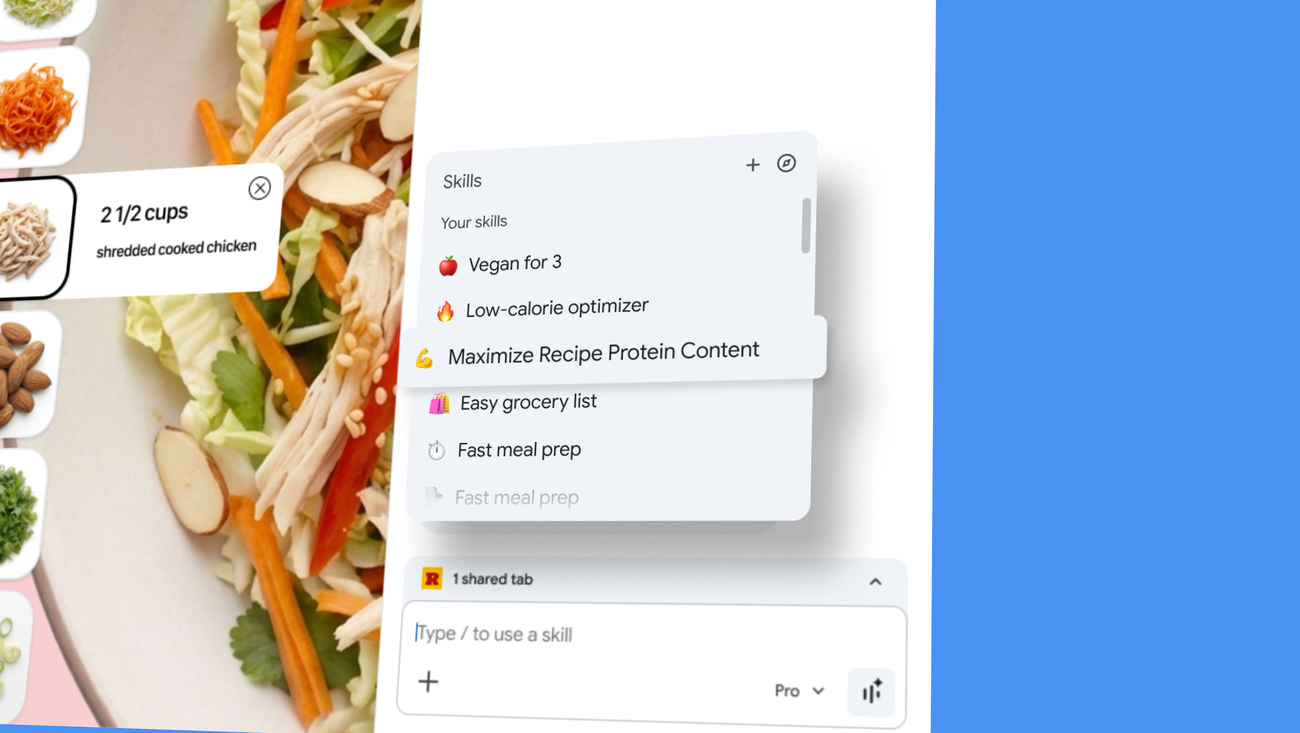
Build your own one-click workflows
Per Google's copy:
- Write a prompt you expect to reuse.
- Save it as a Skill from chat history.
- Next time, in Gemini in Chrome, type
/or click+, pick the Skill, and run it on the page you're viewing plus any other tabs you include. - Edit Skills or create new ones anytime.
Early-tester examples cited in the post:
| Area | Example use |
|---|---|
| Health & wellness | Quickly calculate protein macros for a recipe |
| Shopping | Side-by-side spec comparisons across multiple tabs |
| Productivity | Scan long documents for important information |
Step-by-step: Creating your first Chrome Skill
Let me expand on the creation workflow with practical detail:
Starting point: A task you do repeatedly Let's say you frequently research products before buying. You visit multiple retailer sites, compare prices, check reviews, and look at specifications. This is a perfect candidate for a Skill.
Step 1: Perform the task manually once with Gemini Open Gemini in Chrome (click the Gemini icon in your toolbar or use Ctrl/Cmd+Shift+G). On a product page, try a prompt like:
Extract the product name, price, key specifications, and average customer rating from this page. Format the result as a structured table.
Step 2: Save the prompt as a Skill If the result looks good, scroll to the bottom of Gemini's response. You'll see a "Save as Skill" button. Click it and give your Skill a memorable name like "Product Research Template."
Step 3: Customize the Skill (optional) After saving, you can edit the underlying prompt to make it more robust:
Extract and structure product information from this page:
- Product name and model number
- Current price and any discounts
- Key specifications (size, weight, features)
- Average customer rating and number of reviews
- Availability and shipping time

Present the information in a markdown table for easy comparison.
Step 4: Use your Skill across multiple tabs
Now when shopping, open product pages in different tabs. Activate Gemini, type / to see your Skills, select "Product Research Template," and check the tabs you want to analyze. Gemini will run the extraction on all selected tabs and create a unified comparison table.
Real-world productivity scenarios
Beyond the official examples, here are tested use cases from early adopters:
For developers:
- "Debug Helper": Analyze error messages and stack traces, suggest fixes based on the specific framework and version
- "API Documentation Summarizer": Extract endpoint details, parameters, and example requests from API docs
- "Code Review Checklist": Apply a standard review checklist to pull request pages
For researchers:
- "Academic Paper Summary": Extract methodology, key findings, and limitations from scholarly articles
- "Citation Generator": Create properly formatted citations from article pages
- "Literature Review Matrix": Build comparison tables from multiple research paper tabs
For content creators:
- "SEO Analyzer": Check title tags, meta descriptions, heading structure, and keyword density
- "Competitor Content Audit": Compare your content structure against top-ranking competitors
- "Social Media Post Generator": Create platform-specific posts from blog content
For students:
- "Study Note Generator": Convert lecture slides or reading material into structured study notes
- "Practice Question Creator": Generate quiz questions from textbook pages
- "Concept Mapper": Extract key concepts and their relationships from educational content
The Skills library
Google also ships a library of starter Skills—browse, add one to your saved set, run it, then tweak the prompt.
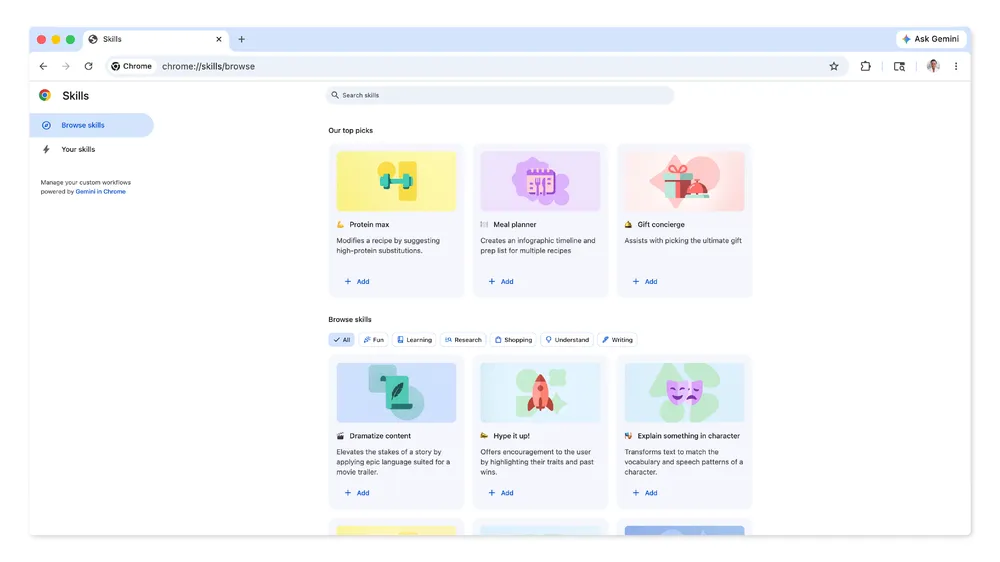
Image credit: Google — Skills in Chrome.
Stay in control (privacy & confirmations)
The post emphasizes Chrome’s security and privacy foundation and parity with Gemini in Chrome safeguards: confirmation before actions like adding calendar events or sending email, plus layered protections (including automated red-teaming and auto-update).
Rollout note
Google states Skills are rolling out to Gemini in Chrome for Mac, Windows, and ChromeOS, with Chrome language set to English (US)—check the official post for the latest availability.
"Skills" overload: Chrome vs agent skills (SKILL.md)
The industry now uses skill in two very different ways:
| Skills in Chrome (Google) | Agent skills (e.g. explainx.ai / Claude Code) | |
|---|---|---|
| What it is | Saved prompts in Gemini in Chrome | Portable instruction packs (often SKILL.md) for coding agents |
| Where it runs | Browser + Google's Gemini product | IDEs, terminals, npx skills workflows |
| Sharing | Google's library + your saves | Registries, GitHub, install commands |
| Target users | End users automating web tasks | Developers automating code tasks |
| Persistence | Synced to Google account | Repository-local or global agent config |
If you are building reusable playbooks for agents, start with our agent skills guide and the skills registry—that ecosystem is complementary to Chrome's feature, not a competitor.
Understanding the naming collision
The term "skill" emerged independently in two contexts:
Chrome Skills evolved from Google's work on user-facing AI assistance. The metaphor is "teaching your browser new skills" the way you might teach someone a procedure.
Agent skills (SKILL.md) emerged from the developer tools ecosystem as a way to package reusable instructions for AI coding assistants. The metaphor is "giving your AI pair programmer new capabilities."
Both use the same word because they solve similar problems (making AI behavior reusable and discoverable) but at different layers of the stack.
For most users, Chrome Skills are more immediately useful because they work in the context you already spend time: your browser. You don't need to install development tools or understand terminal commands.
For developers, both skill systems can work together. You might use Chrome Skills to automate research and documentation tasks in your browser, and agent skills to automate code generation and refactoring in your IDE.
Privacy and data considerations
Google's announcement emphasizes that Skills in Chrome follow the same privacy model as Gemini in Chrome:
What gets processed:
- The visible content of pages you apply Skills to
- Your prompt and any customizations you make to Skills
- The generated output
Where processing happens:
- Most Gemini processing occurs in Google's cloud infrastructure
- Page content is sent to Google's servers when you invoke a Skill on that page
- Your saved Skills are stored in your Google account and sync across devices
What you control:
- Which pages you apply Skills to (nothing happens automatically)
- Whether to save a Skill or just use it once
- Whether to share Skills you create (future feature mentioned in the announcement)
- You can delete Skills anytime from your Skills library
Important considerations for enterprise users: If you work with sensitive information, check your organization's policies before using Skills on:
- Internal tools and dashboards
- Confidential documents
- Customer data or PII
- Proprietary code or designs
Google does not currently offer a separate enterprise version of Skills in Chrome with additional compliance controls, though that may change as the feature matures.
Official video
Google’s post includes a header video; the fetched page also references an MP4 asset (e.g. for browsers without embedded playback). For the canonical experience, use the Keyword article directly.
Why this matters for teams
Reusable prompts are the thin edge of workflow automation inside the browser. For individuals, Skills reduce friction; for teams, they are a reminder that governance (what gets saved, what gets shared, what touches customer data) will matter as libraries grow—similar to how enterprises already curate agent skills and MCP tools elsewhere.
Organizational workflow implications
When Skills in Chrome becomes widely adopted within companies, several organizational patterns will likely emerge:
Skill libraries as institutional knowledge Teams will develop collections of Skills that encode "how we do things here":
- Sales teams will have Skills for competitive analysis and lead research
- Support teams will have Skills for troubleshooting and ticket summarization
- Marketing teams will have Skills for content audits and SEO analysis
- Legal teams will have Skills for contract review and compliance checking
Quality and consistency benefits When everyone uses the same Skill for a given task, output becomes more standardized:
- New hires can leverage Skills created by experienced team members
- Cross-functional collaboration improves when everyone extracts information the same way
- Best practices get encoded and disseminated automatically
Governance challenges Organizations will need to think about:
- Who can create Skills that others use?
- How do we version and update Skills without breaking workflows?
- What approval process exists before a Skill touches sensitive data?
- How do we audit what information Skills are extracting and where it's going?
Training and change management Successful adoption will require:
- Documenting which Skills exist and what they're for
- Training sessions on how to create and modify Skills
- Clear policies about when to use Skills vs. manual processes
- Feedback mechanisms to improve Skills based on user experience
Skills vs. browser extensions: A comparison
Chrome Skills overlap with some traditional browser extension use cases, but with key differences:
| Aspect | Chrome Skills | Browser Extensions |
|---|---|---|
| Installation | Built into Chrome, no install needed | Must find, install, and grant permissions |
| Customization | Natural language prompts | Usually fixed features or complex settings |
| Cross-site use | Works on any website | Often limited to specific sites or types |
| Learning curve | Low - just describe what you want | Varies - can require reading docs |
| Flexibility | Highly flexible within AI capabilities | Fixed to what developer built |
| Privacy | Sends data to Google | Varies by extension - some local, some cloud |
| Updates | Automatic as Gemini improves | Manual or auto-update by developer |
When Skills are better:
- One-off or infrequent tasks that don't justify finding an extension
- Tasks requiring understanding of natural language or page semantics
- Multi-tab analysis and comparison
- Adapting to changes in website structure (AI can often still work)
When extensions are better:
- Real-time automation without manual triggering
- Complex interactions requiring form filling or button clicking
- Tasks needing local processing for privacy
- Very high-frequency operations where latency matters
- Modifying page appearance or behavior permanently
The future of browser automation
Skills in Chrome represents a philosophical shift in how we think about browser productivity:
Past paradigm: Install specialized tools for specific tasks (ad blocker, password manager, screenshot tool, translator, etc.)
Emerging paradigm: Describe what you want done in natural language, and the browser figures out how to do it.
This doesn't mean extensions will disappear—they'll continue to serve use cases where deterministic, instant, local processing matters. But for the large middle ground of "I wish the browser could help me with this," Skills provide a lower-friction path than extension hunting.
As Google continues developing this feature, we'll likely see:
- Skills that can trigger actions, not just extract information
- Deeper integration with Google Workspace (Calendar, Drive, Gmail)
- Team/organization skill sharing and management
- More sophisticated multi-step workflows
- Better handling of dynamic and JavaScript-heavy pages
Related on explainx.ai
- What are agent skills? — SKILL.md, progressive disclosure, MCP
- What is MCP? — tools and context for agents
- Skills registry — community-ranked installs
Getting started today
If you're ready to try Skills in Chrome:
- Check eligibility: Ensure you're on Mac, Windows, or ChromeOS with Chrome set to English (US)
- Update Chrome: Make sure you have the latest version
- Open Gemini in Chrome: Click the Gemini icon or use Ctrl/Cmd+Shift+G
- Browse the Skills library: Type
/and explore pre-made Skills - Try a starter Skill: Run one on a current tab to see how it works
- Create your first custom Skill: Identify a task you do weekly and save a prompt for it
Pro tips for power users:
- Start with simple extraction tasks before attempting complex multi-tab analysis
- Name your Skills descriptively so you can find them months later
- Regularly review and update Skills as your workflows evolve
- Share promising Skill ideas with your team before everyone reinvents the wheel
- Test Skills on sample data before using them on sensitive information
Troubleshooting common issues:
- Skill doesn't appear: Refresh Skills library by closing and reopening Gemini
- Results inconsistent: Make your prompt more specific about format and details needed
- Multi-tab not working: Ensure all tabs are fully loaded before invoking the Skill
- Skill disappeared: Check your Google account - Skills sync may have delayed
Final thoughts
Skills in Chrome transforms Gemini from a one-time helper into a library of reusable tools tailored to your specific needs. While the feature is still in early rollout and will evolve based on user feedback, the core concept is sound: reducing the friction between "I need to do this again" and "just do it."
For teams already using AI agents and automation tools, Skills in Chrome fills a gap in the browser layer. For individuals just beginning to explore AI productivity, it's an accessible entry point that doesn't require understanding APIs, command lines, or complex configurations.
As the feature matures and Google presumably adds team sharing, enterprise controls, and deeper integrations, it could become as fundamental to browsing as bookmarks or tabs. The question isn't whether reusable AI prompts will become commonplace—it's whether Google can execute on the vision before others (Microsoft Edge with Copilot, Arc with AI features) capture the same territory.
This article summarizes a Google product announcement and is not affiliated with Google. Imagery is credited to Google's public blog and stored locally for performance; refer to the official post for the latest terms and availability.