Alpha Vantage — Real-time market data for stocks, forex, crypto, commodities and economic indicators. Reliable APIs for
 by
by Add new capabilities to Claude beyond text generation
Example: Access external data sources, execute code, interact with tools and services
Transform Claude from chatbot to action-taking agent
Provide Claude with access to relevant context and data
Example: Load project documentation, access knowledge bases, query databases
Get more accurate, context-aware responses
Automate multi-step workflows combining AI and external tools
Example: Research → Summarize → Create document → Send notification
Complete complex tasks end-to-end without manual steps
Time estimate: 15-60 minutes depending on server complexity
Prerequisites
BioMCP (Biomedical Database Integration)
BioMCP integrates ClinicalTrials.gov, PubMed, and MyVariant.info for unified biomedical database access with structured,
Investor Agent (Financial Analysis)
Analyze lrcx stock in real-time with Investor Agent using yfinance and CNN data for portfolio and market sentiment insig
Chronulus AI Forecasting
Leverage Chronulus AI Forecasting for predictive analytics: analyze, predict, and visualize time series data with natura
Solana Agent Kit
Solana Agent Kit: Easily deploy tokens, mint NFTs, and manage DeFi & cross-chain tasks with Solana integration in chat i
Seo Research
SEO Research MCP brings powerful SEO research capabilities directly into your AI coding assistant. Using the Model Conte
We wired Alpha Vantage into a staging workspace; the listing’s GitHub and npm pointers saved time versus hunting across READMEs.
According to our notes, Alpha Vantage benefits from clear Model Context Protocol framing — fewer ambiguous “AI plugin” claims.
Strong directory entry: Alpha Vantage surfaces stars and publisher context so we could sanity-check maintenance before adopting.
Alpha Vantage reduced integration guesswork — categories and install configs on the listing matched the upstream repo.
We wired Alpha Vantage into a staging workspace; the listing’s GitHub and npm pointers saved time versus hunting across READMEs.
Alpha Vantage is among the better-indexed MCP projects we tried; the explainx.ai summary tracks the official description.
Useful MCP listing: Alpha Vantage is the kind of server we cite when onboarding engineers to host + tool permissions.
We evaluated Alpha Vantage against two servers with overlapping tools; this profile had the clearer scope statement.
Alpha Vantage is a well-scoped MCP server in the explainx.ai directory — install snippets and categories matched our Claude Code setup.
I recommend Alpha Vantage for teams standardizing on MCP; the explainx.ai page compares cleanly with sibling servers.
showing 1-10 of 66
Share your MCP server with the developer community
Select a client to integrate this server.
Claude Desktop configuration
{
  "mcpServers": {
    "alphavantage": {
      "url": "https://mcp.alphavantage.co/mcp?apikey=YOUR_API_KEY",
      "env": null,
      "headers": null
    }
  }
}Provides real-time and historical financial data for stocks, forex, crypto, commodities, and economic indicators through Alpha Vantage API.
Alpha Vantage is an official MCP server published by alphavantage that provides AI assistants with tools and capabilities via the Model Context Protocol. Alpha Vantage — Real-time market data for stocks, forex, crypto, commodities and economic indicators. Reliable APIs for It is categorized under finance, analytics data.
You can install Alpha Vantage in your AI client of choice. Use the install panel on this page to get one-click setup for Cursor, Claude Desktop, VS Code, and other MCP-compatible clients. This server supports remote connections over HTTP, so no local installation is required.
The official Alpha Vantage API MCP server enables LLMs and agentic workflows to seamlessly interact with real-time and historical stock market data through the Model Context Protocol (MCP). Add this server to your favorite apps such as Claude, Claude Code, Cursor, VS Code, and many more to give them access to comprehensive financial data.
To use the server, <a href="https://www.alphavantage.co/support/#api-key" onclick="gtag('event', 'mcp_getKey')">get your free Alpha Vantage API key</a>, copy it to your clipboard, then follow the instructions below for the agentic tool/platform of your interest.
⚡ We use an optimization technique called Progressive Tool Discovery to minimize the number of tokens consumed (hence the cost incurred) while preserving the superb response quality when the MCP server is invoked. You can learn more about this technique here
⭐ View MCP source code on Github
👉 Any questions? Please contact support@alphavantage.co
Remote Server Connection:
https://mcp.alphavantage.co/mcp?apikey=YOUR_API_KEY
Local Server Connection:
uvx av-mcp YOUR_API_KEY
💡💡 I'm just exploring
Just exploring what to build? Check out the Trading Agents stock research tool (#1 trending on Github), which is powered by Alpha Vantage market data with no setup required.
💬📊 Power your chatbot with financial data
<details> <summary><b>Install in Claude</b></summary>Requirements:
To connect Claude (Web or Desktop) to this MCP server:
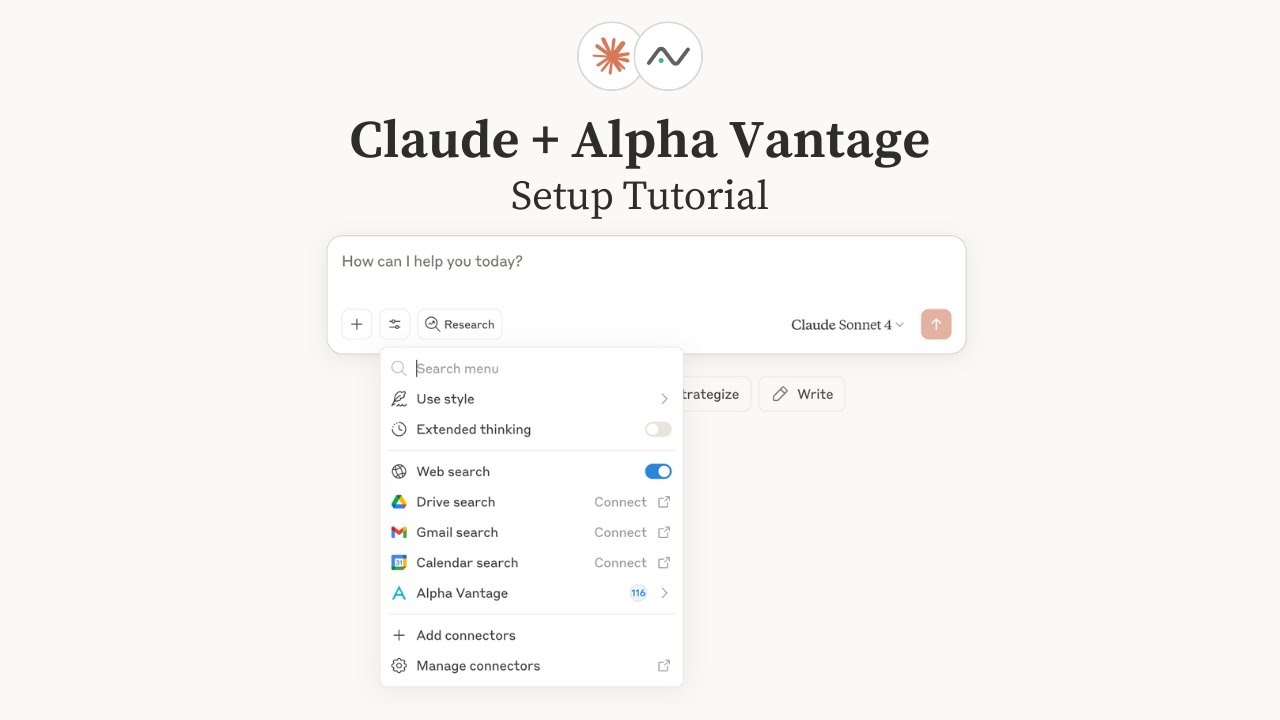
📺 Watch the setup tutorial - Click the image below to watch a step-by-step video guide:
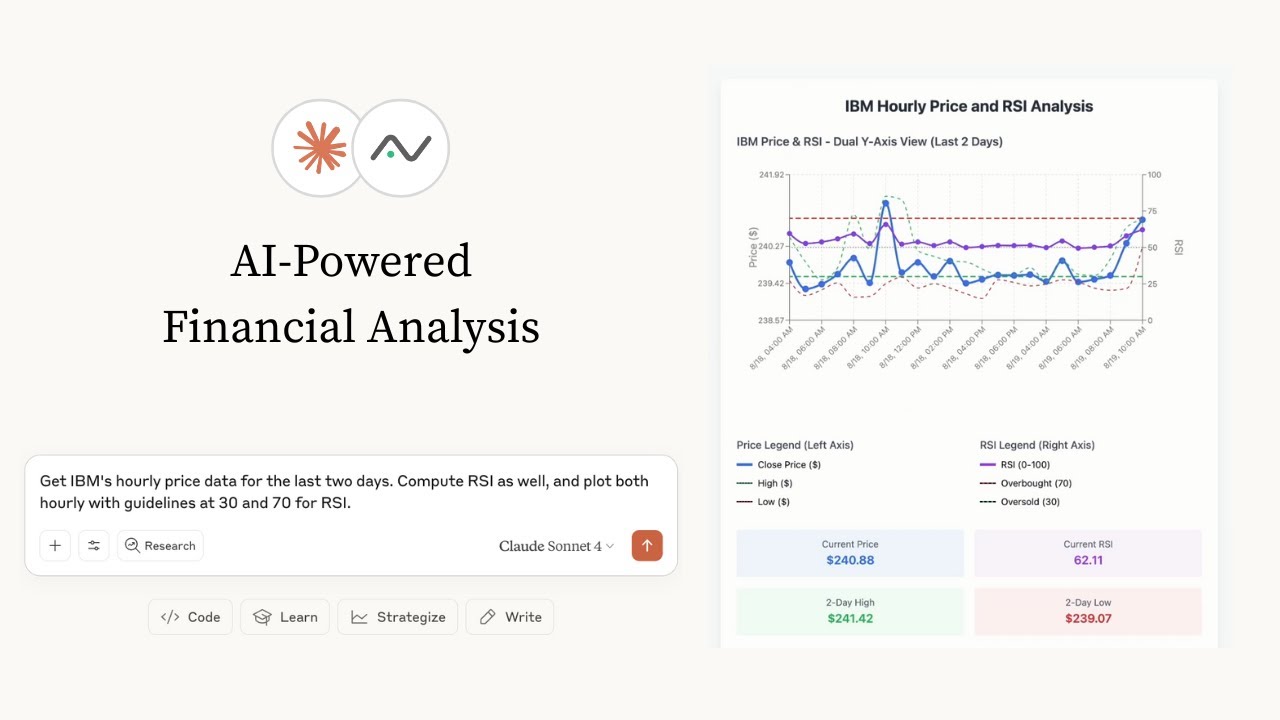
📺 Already have your Alpha Vantage MCP server set up? Below are a few examples of Claude performing various stock analysis & charting tasks:
Query Param Option (Recommended):
https://mcp.alphavantage.co/mcp?apikey=YOUR_API_KEY (replace YOUR_API_KEY with your actual Alpha Vantage API key)OAuth Option:
https://mcp.alphavantage.co/mcpSee Claude Desktop MCP docs for more info.
Install uv (a modern Python package and project manager):
curl -LsSf https://astral.sh/uv/install.sh | sh
Open Claude Desktop developer settings and edit your claude_desktop_config.json file to add the following configuration:
{
  "mcpServers": {
    "alphavantage": {
      "command": "uvx",
      "args": ["av-mcp", "YOUR_API_KEY"]
    }
  }
}
Replace YOUR_API_KEY with your actual Alpha Vantage API key.
Requirements:
Setup:
https://mcp.alphavantage.co/mcp?apikey=YOUR_API_KEY (replace YOUR_API_KEY with your actual Alpha Vantage API key).Note: When you return to your conversation, your UI will clearly indicate that you are in Developer mode. ChatGPT will retain memory of any previous remarks made within the same chat session; however, these sessions may not be persisted, meaning the conversation generated while Developer mode is active may not be saved or accessible once closed.
Troubleshooting for ChatGPT Plus Accounts
While Developer mode is available for both Plus and Pro accounts, on Plus accounts, first-time MCP tool execution may exhibit inconsistent behavior. This primarily affects large data payloads returned from the MCP server. If you notice that MCP calls abruptly terminate without returning any JSON response, try the following:
Confirm Connection
List 3 functions available in Alpha Vantage MCP server.
TIME_SERIES_DAILY and TIME_SERIES_INTRADAY.Force JSON Passthrough with simple payload
Run ADD_TWO_NUMBERS from Alpha Vantage MCP Server using 3 and 6, and then show the JSON response.
Thinking make it Skip, so that it doesn't try the call again and instead outputs its conversational response.
Why aren't you receiving a JSON response?
Explicitly request a return value from the tool response to verify what the server outputs.
Force JSON Passthrough with large payload
Run TIME_SERIES_DAILY using NVDA, and then show the JSON response.
🤖📈 Create agentic workflows for quantitative investing
<details> <summary><b>Configure in OpenAI Agent Builder</b></summary>Requirements:
📺 Watch the setup tutorial. (Click image below.)

To connect OpenAI Agent Builder to this MCP server:
https://mcp.alphavantage.co/mcpAlpha Vantage MCP Server (or any name you prefer)Financial market data and technical indicators (or any description you prefer)Recommended Agent Instructions:
Add the following instruction to your agent's configuration to optimize performance:
You are a helpful financial agent with access to market data through Alpha Vantage MCP Server.

IMPORTANT: Alpha Vantage functions are accessed via wrapper tools:
- Use TOOL_LIST to see available functions (TIME_SERIES_DAILY, RSI, COMPANY_OVERVIEW, etc.)
- Use TOOL_CALL with the format: TOOL_CALL(tool_name="FUNCTION_NAME", arguments={...})
- Example: TOOL_CALL(tool_name="TIME_SERIES_DAILY", arguments={"symbol": "AAPL", "outputsize": "compact"})
To use the Alpha Vantage MCP server with OpenAI Agents SDK, see our example agent that demonstrates:
The example includes a complete setup guide and configuration templates.
</details>
💻💵 Code up fintech apps
<details> <summary><b>Install in OpenAI Codex</b></summary>Requirements:
See OpenAI Codex for more information.
📺 Watch the setup tutorial. (Click image below.) This video additionally provide
Steps
Troubleshooting
✓ Do
✗ Don't
💡 Pro Tips
Architecture
Model Context Protocol standardizes how AI hosts (Claude, Cursor) communicate with external tools and data sources through server implementations.
Protocols
Compatibility
✓ Use when
Use when you need Claude to access external data, execute actions, or integrate with tools. Best for extending AI capabilities beyond conversation.
✗ Avoid when
Avoid when native integrations exist (use official APIs directly), for real-time critical systems, or when security/compliance requires zero external dependencies.



