



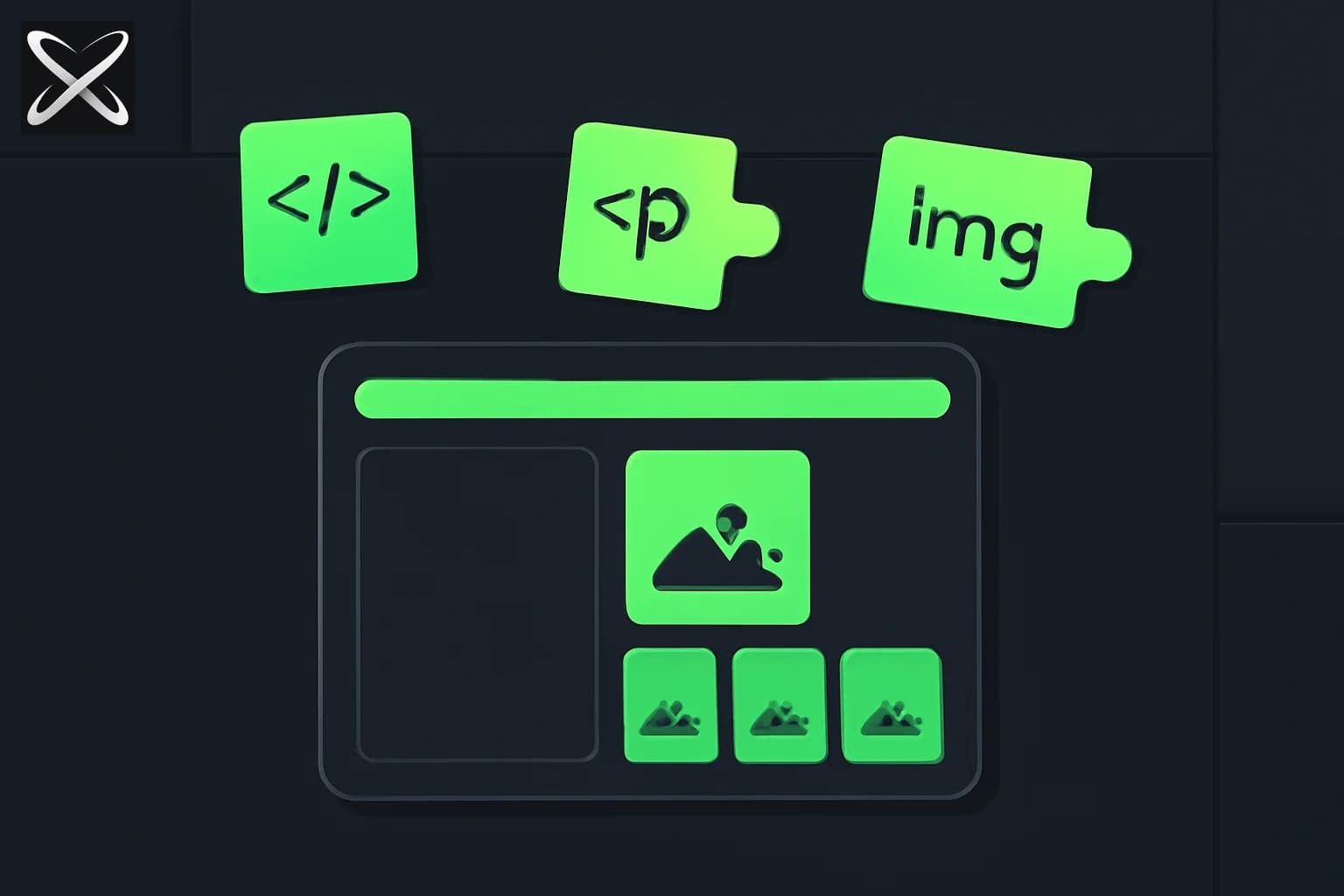
Imagine your browser is a person who can only read instructions written in a very specific way. HTML is that instruction language. You write it, the browser reads it, and the result is a web page.
That's the whole thing.
There's no maths in HTML. No logic. No if-then-else. It's just text with labels around it that say "this is a heading," "this is a paragraph," "this is an image." Anyone who can type can write HTML. The trick is knowing what labels exist and when to use them.
This guide teaches you the labels you'll actually use — then walks you through two real projects you can build today.
HTML is a labelling system
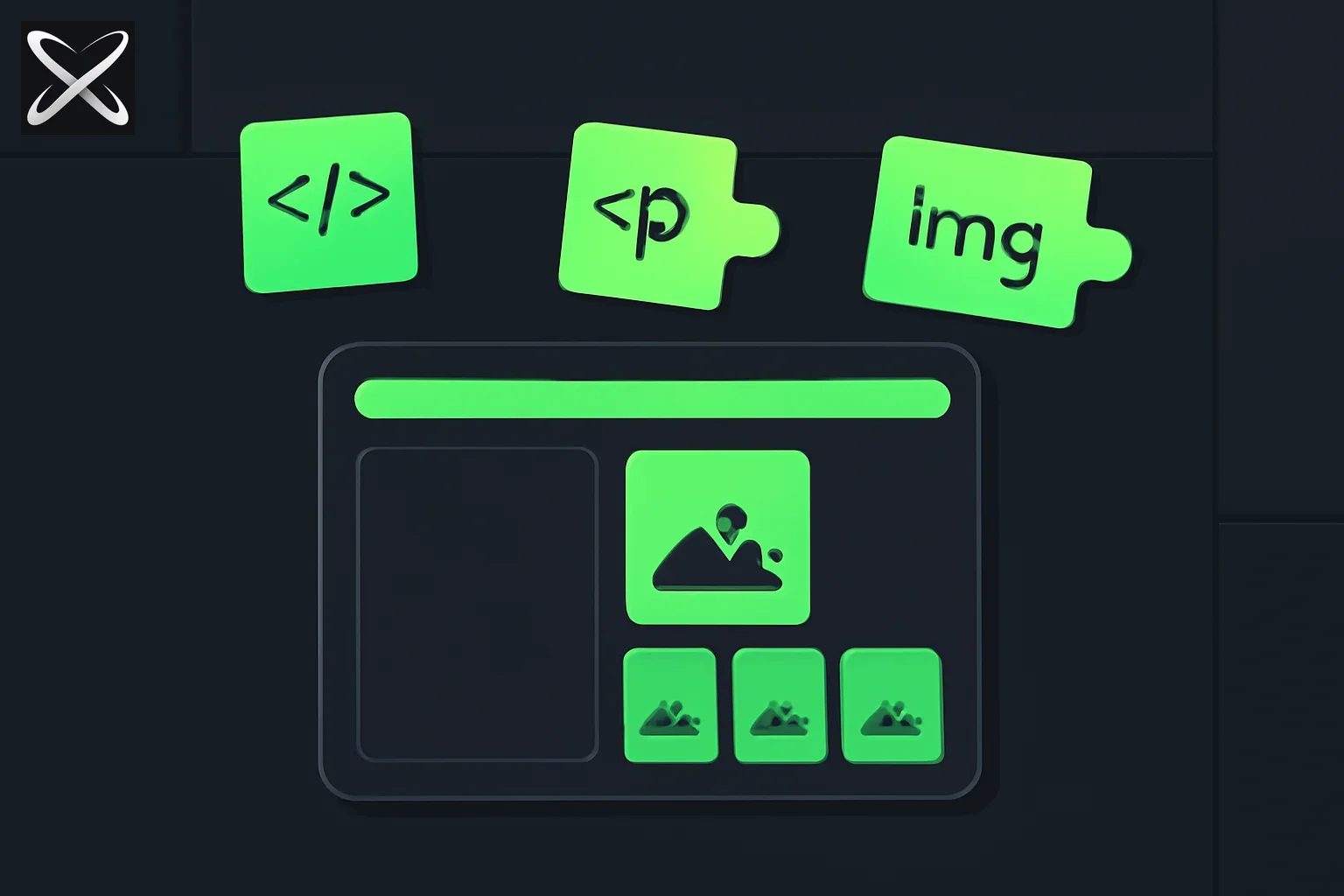
Think of a newspaper laid out flat. Someone has marked up the paper in pen:
- Red circle around the headline: "This is the biggest text"
- Blue underline under story summaries: "This is a paragraph"
- Green box around the photo: "This is an image"
- Arrow pointing to a link: "Click this to go somewhere else"
HTML is that pen. The labels are called tags. Tags come in pairs — an opening one and a closing one, like parentheses:
<h1>This is a headline</h1>
<p>This is a paragraph of text.</p>
The <h1> part opens the label. The </h1> part (note the slash) closes it. Everything between them is what the label applies to.
That's the entire concept. The rest is just learning which labels exist.
The skeleton every HTML page needs
Every webpage starts with the same five-line structure. Think of it as the frame before you decorate a house:
<!DOCTYPE html>
<html lang="en">
  <head>
    <title>My Page</title>
  </head>
  <body>
    <!-- everything you actually see goes here -->
  </body>
</html>
What each part does:
| Part | What it's like in real life |
|---|---|
<!DOCTYPE html> | The cover page that tells the browser what kind of document this is |
<html> | The outer walls of the house — everything else lives inside |
<head> | The attic — invisible stuff like the page title, fonts, and settings |
<title> | The name on the door — what appears in the browser tab |
<body> | The inside of the house — everything the visitor actually sees |
<!-- comment --> | A sticky note to yourself that the browser ignores |
The tags you'll use 90% of the time
Headings — for titles and section labels
HTML has six heading sizes, h1 through h6. Use h1 for the main title of the page, h2 for section headings, h3 for subsections:
<h1>My Photo Gallery</h1>
<h2>Landscapes</h2>
<h3>Mountains</h3>
Think of h1 as the title on a book cover. h2 is a chapter title. h3 is a section within a chapter.
Paragraphs — for blocks of text
<p>This is a paragraph. It can be as long as you want. The browser wraps it automatically.</p>
<p>This is a second paragraph. There's automatic space between paragraphs.</p>
Links — for clicking to go somewhere
<a href="https://explainx.ai">Visit explainx.ai</a>
The href is the destination address. Everything between the tags is what the visitor clicks on. href stands for "hyperlink reference" — you don't need to memorise that, just remember it's where the link goes.
Images — for showing pictures
<img src="cat.jpg" alt="A grumpy-looking cat" />
Two things to notice: images are self-closing (no separate closing tag — just /> at the end), and they need two things:
src— where to find the image (a file name or a web URL)alt— a text description for screen readers and for when the image fails to load
Lists — for bullet points and numbered steps
<!-- Bullet list (unordered) -->
<ul>
  <li>Apples</li>
  <li>Bananas</li>
  <li>Oranges</li>
</ul>

<!-- Numbered list (ordered) -->
<ol>
  <li>Open the terminal</li>
  <li>Type the command</li>
  <li>Press Enter</li>
</ol>
ul = unordered list (bullets). ol = ordered list (numbers). li = list item. Each item gets its own <li> tag.
Divs — for grouping things together
<div class="card">
  <h2>Card Title</h2>
  <p>Card description goes here.</p>
</div>
A div is a container. It doesn't add any visual style on its own — it's just a box you use to group related content together. CSS then targets the box to add colour, border, padding, etc.
The class attribute — for targeting with CSS
You'll see class="something" on many tags. Classes are labels you invent and attach to elements so CSS can style them. The browser doesn't care what you name the class — it's just a hook for your styles.
<p class="intro-text">This paragraph gets its own special style.</p>
<p>This one doesn't.</p>
Adding style with CSS
HTML handles structure. CSS handles appearance. You put CSS inside a <style> tag in the <head>:
<head>
  <style>
    body {
      background: #1a1a1a;
      color: white;
      font-family: sans-serif;
    }

    h1 {
      font-size: 2rem;
      color: #ff4444;
    }

    .card {
      background: #222;
      padding: 20px;
      border-radius: 8px;
    }
  </style>
</head>
CSS works like this:
who {
  what: value;
}
body— target the whole pageh1— target everyh1heading.card— target every element withclass="card"(note the dot)
You don't need to memorise CSS properties. In Cursor, you describe what you want — "dark background, white text, rounded corners" — and the AI writes it.
Project 1: The Grumpy Cat Fan Page
A page dedicated to Grumpy Cat — the internet's most famous disapproving feline. This teaches you: page structure, images, headings, paragraphs, lists, and basic dark-mode styling.
Here's what you're building — live and interactive:
The Cursor prompt
Open Cursor, create a new empty folder, open Composer (Cmd + I on Mac, Ctrl + I on Windows), and paste this:
Build a Grumpy Cat fan page as a single index.html file.

The page should include:
- A dark background (#1a1a1a) with white text
- A red accent colour (#ff4444)
- A header with the title "😾 Grumpy Cat" in red and subtitle "Not Amused Since 2012"
- The actual Grumpy Cat photo from Wikipedia:
  https://upload.wikimedia.org/wikipedia/commons/thumb/d/dc/Grumpy_Cat_%2814556024763%29_%28cropped%29.jpg/400px-Grumpy_Cat_%2814556024763%29_%28cropped%29.jpg
  Show it centred with a red border and rounded corners
- A small caption below the photo saying "Tardar Sauce, 2012–2019. Forever unimpressed."
- Three blockquotes with grumpy cat quotes, styled with a red left border
- A section titled "Things Grumpy Cat Does Not Like" with a list of 5 funny items
- A footer saying "Official Home of Grumpiness · Built with plain HTML"

All styles inline in a <style> tag in the <head>. No external dependencies.
What you'll learn by building this
- How
<header>,<main>, and<footer>section a page - How
<img>loads an image from a URL - How
<blockquote>formats quoted text - How CSS targets specific tags and classes
- How
border-leftcreates an accent stripe on a quote block
Now make it yours — iterate with Cursor
Once you have the base page working, try these follow-up prompts in Composer:
Change the accent colour from red to purple and update all borders and text accordingly.
Add a "Fan Mail" section at the bottom with three short testimonials from imaginary fans.
Each testimonial should have a name, a 1–2 sentence quote, and a star rating out of 5.
Add a sticky navigation bar at the top with links to: About, Quotes, Facts, Fan Mail.
When clicked, they should smooth-scroll to the relevant section.
Project 2: The Photo Gallery
A responsive grid gallery with hover captions. This teaches you: CSS Grid, aspect ratios, hover effects, and how layout works on different screen sizes.
The Cursor prompt
Build a photo gallery as a single index.html file.

Design requirements:
- Dark background (#0f0f0f), minimal design
- A header with title "My Photo Gallery" and subtitle "A collection of beautiful moments"
- A CSS Grid gallery with 3 columns and 6px gap
- 7 photos total — use Unsplash URLs with w=400&q=80 for normal cells and w=800 for wide ones
- Use these specific Unsplash photo IDs (append to https://images.unsplash.com/photo-[ID]?w=400&q=80&auto=format&fit=crop):
  1506905925346-21bda4d32df4 (mountains) — make this WIDE (span 2 columns, 2:1 ratio)
  1552053831-71594a27632d (golden retriever) — normal square
  1490750967868-88df5691cc1c (flowers) — make this TALL (span 2 rows, 1:2 ratio)
  1477959858617-67f85cf4f1df (city at night) — normal square
  1507003211169-0a1dd7228f2d (portrait) — normal square
  1501854140801-50d01698950b (forest) — WIDE (span 2 columns)
  1518020382113-a7e8fc38eac9(small dog) — normal square

- Each photo card: overflow hidden, border-radius 8px, aspect-ratio 1/1
- On hover: image scales up slightly (transform: scale(1.08)) with smooth transition
- On hover: a dark overlay fades in over the image
- On hover: a caption label slides up from the bottom (the photo name)
- A small footer: "Built with HTML & CSS · No JavaScript required"

Single file, all styles in <style> tag. No external dependencies. No JavaScript.
What you'll learn by building this
- How
display: gridandgrid-template-columnscreate multi-column layouts - How
grid-column: span 2makes one item take up two columns - How
aspect-ratiokeeps images the same proportions regardless of screen size - How
overflow: hiddenclips images to their container - How
:hoverand CSStransitioncreate smooth visual effects - How
position: absoluteoverlays one element on top of another
Customise it with Cursor
Replace all images with photos of [your city / your pet / your hobby].
Use Unsplash search URLs: https://images.unsplash.com/search?query=[your topic]&w=400
Add a filter bar above the gallery with buttons: All, Landscapes, Animals, People.
When clicked, hide cards that don't match the selected category.
Add a data-category="landscapes" attribute to each card to identify which category it belongs to.
When a photo is clicked, open it in a lightbox — a full-screen dark overlay
showing just that image with an X button to close it.
What you can build with just HTML and CSS
| Project | What it uses |
|---|---|
| Personal portfolio | Headings, paragraphs, lists, links, images |
| Restaurant menu | Tables, sections, images |
| Photo gallery | CSS Grid, hover effects |
| Landing page | Flexbox, hero section, buttons |
| Blog post | Typography, blockquotes, code blocks |
| Product page | Grid, cards, buttons |
| Team page | Grid of cards with photos and bios |
All of these can be built with HTML and CSS alone. No JavaScript. No database. No backend. You can host a folder of HTML files for free on Vercel and have it live on the internet in minutes.
Mistakes beginners make (and what they actually mean)
"My image isn't showing."
The src path is wrong. Check: is the file name spelled exactly right (case matters)? Is the file in the same folder as your HTML? Try using a full URL instead of a file name to test.
"My text looks tiny / huge / wrong." You probably have a typo in your CSS, or a CSS rule is overriding another. In Cursor, paste the CSS and say "why isn't this doing what I expect?"
"My page looks fine on my laptop but broken on my phone."
You need a responsive layout. Add this to your <head> if it's not already there:
<meta name="viewport" content="width=device-width, initial-scale=1.0">
Then ask Cursor: "Make this layout responsive for mobile screens."
"I changed something and now nothing works."
Close the file. Run git diff to see what changed. Undo the last change. The browser's developer tools (right-click → Inspect) show HTML errors as red text in the Console tab.
"My HTML tag isn't closing."
This is the most common mistake. Every <div> needs a </div>. Every <p> needs a </p>. Cursor closes tags automatically — if you're writing by hand, add the closing tag immediately after the opening one, then put the content between them.
The fastest way to go from this to a real website
- Build the Grumpy Cat page — follow the Cursor prompt above
- Replace the content with yours — your name, your photo, your bio
- Add a second page — create
projects.html, link to it from the nav - Push to GitHub — see the Git guide
- Deploy to Vercel — see the Vercel guide
- Share the URL
That's a real website. Yours. Live on the internet. Built in a day.
What's next after HTML
Once you're comfortable with HTML and CSS, the natural next steps are:
- JavaScript basics — make your page interactive: show/hide things, respond to clicks, fetch data
- Next.js — the framework that most modern websites use, built on top of HTML/CSS/JavaScript
- Vibe coding with Cursor — build faster by describing what you want in plain English
- Git + GitHub — save and share your work properly
HTML is not the exciting part of web development — it's the foundation everything else is built on. The sooner you understand it, the more confidently you can work with everything above it.